EDUTECH TEACHERS NETWORK IS HERE TO BUILD THE NETWORK ALL OVER THE WORLD
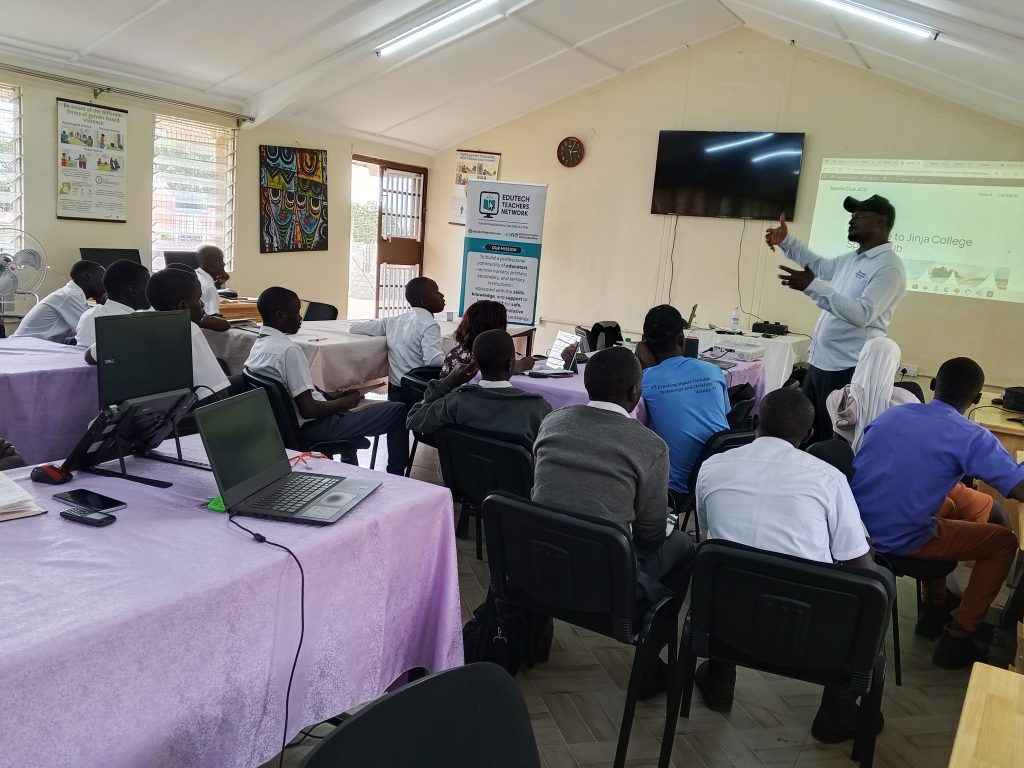
EDUTECH TEACHERS NETWORK AT JINJA COLLEGE
Computers have become essential tools in education, work, and everyday life. For teachers and learners, understanding the basic operations of a computer from starting it up, navigating through its system, to shutting it down safely is the first step toward digital literacy.
These skills may seem simple, yet they are the foundation of all ICT learning. Without knowing how to boot, navigate, and shut down a computer properly, it becomes difficult to explore the vast world of digital tools and educational technology.
The EduTech Teachers Network (ETN) is a dynamic non-profit organization that unites teachers passionate about integrating technology into teaching, learning, and school leadership. Through professional development, mentorship, digital literacy programs, and innovation showcases, ETN is building a professional community of educators across nursery, primary, secondary, and tertiary institutions equipped with the skills, knowledge, and support to integrate ICT for safe, innovative, and inclusive competence-based pedagogy.
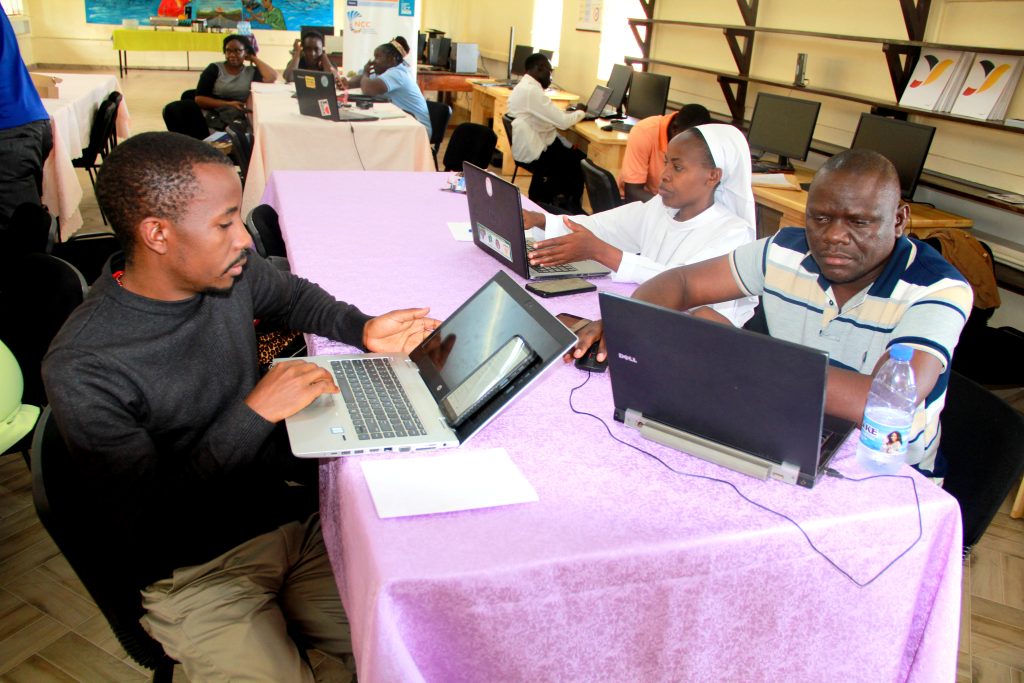
ETN’s vision is To transform education through technology one click at a time.
1. Booting a Computer
Booting refers to the process of starting a computer and preparing it for use. When you press the power button, the computer performs a system check (known as POST – Power-On Self-Test) and loads the operating system (OS), such as Windows, Linux, or macOS. Therefore When you press the power button, several processes take place inside the machine before it displays the desktop or login screen.
There are two types of booting.

Cold Booting: This happens when you turn on the computer after it has been completely powered off.
Warm Booting: This occurs when you restart the computer while it’s still on, often used when installing updates or fixing minor software issues.
- During the booting process, the computer runs a system check called POST (Power-On Self-Test), loads the operating system (like Windows or Linux), and prepares the use
2. Navigating a Computer
Once your computer has successfully booted, the next step is learning how to navigate the operating system (OS). The OS acts as the bridge between you and the computer hardware, allowing you to perform tasks such as opening files, using applications, or connecting to the internet.
Key Components of Computer Navigation:
- The Desktop Environment
The desktop is your main workspace. It contains icons, shortcuts, and a taskbar that give you access to programs and files. - Using the Mouse and Keyboard
The mouse allows you to move the pointer, click, drag, and open items, while the keyboard helps you type, enter commands, and use shortcuts like:- Ctrl + C → Copy
- Ctrl + V → Paste
- Alt + Tab → Switch between open programs
- The Start Menu (Windows)
The Start Menu is where you can find most of your programs, system settings, and power options. It’s the hub for launching applications and searching your computer quickly. - File Explorer / My Computer
This tool helps you access your files, folders, and drives. You can create new folders, copy documents, or organize your learning materials efficiently. - The Control Panel / Settings
Teachers and students can customize display settings, connect to Wi-Fi, or install printers from here — helping create a comfortable learning environment.

3. Shutting Down a Computer Shutting down properly is as important as starting up. When you shut down a computer, you’re allowing it to close all open programs, save system settings, and safely power off.
Here’s the correct way to shut down:
- Save your work in all open applications.
- Close the programs you were using.
- Click on the Start Menu and select Power → Shut Down.
Avoid switching off the power directly, as this can lead to data loss or system damage. For laptops, you can also sleep or hibernate when taking short breaks, which saves power and allows quick resumption of work.
A user clicking “Shut Down” from the Start Menu on a computer.

Why These Basic Operations Matter
For both teachers and learners, mastering these basic computer operations forms the building block for deeper ICT skills such as typing, internet use, and software applications.
- For Teachers: It builds confidence to use digital teaching tools like PowerPoint, Zoom, and online learning platforms effectively.
- For Learners: It builds independence, problem-solving, and a strong foundation for future ICT exploration. These learners can be helped by teachers assisting a students to navigate on desktops or laptops.
Proper booting, navigation, and shutdown also ensure the computer’s longevity, prevent data loss, and enhance system performance, making your technology experience smoother and safer.

Learning how to boot, navigate, and shut down a computer is an essential part of digital literacy. These simple actions introduce learners to responsible and efficient computer use skills that are vital for both academic and professional growth.
As schools continue to embrace ICT integration, every teacher and student should aim to master these basic steps. Remember: every advanced digital skill begins with understanding the basics.
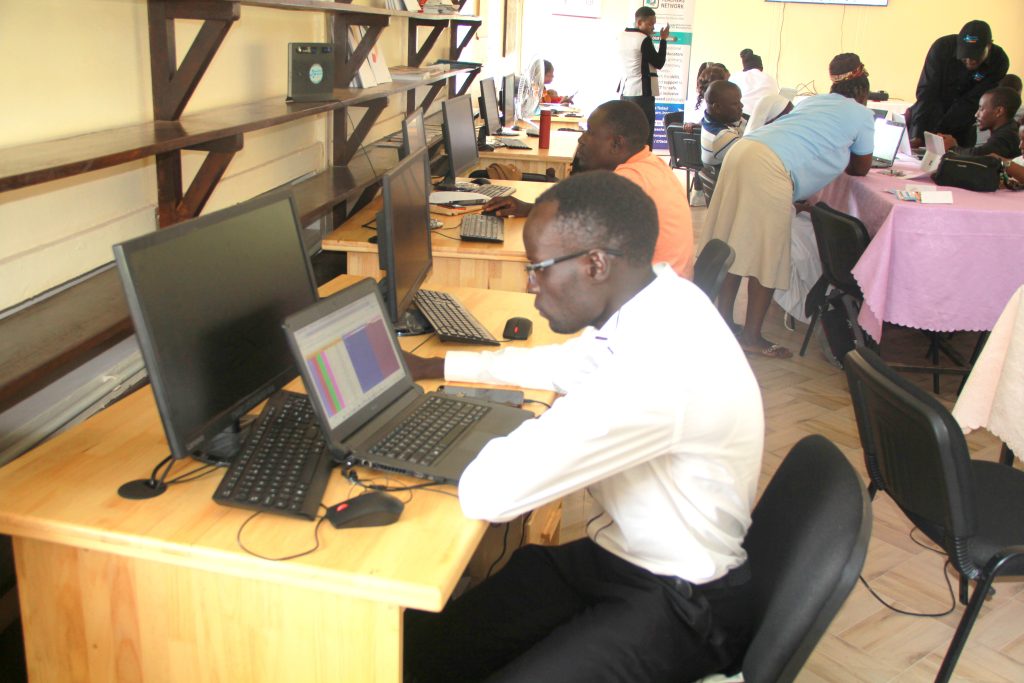
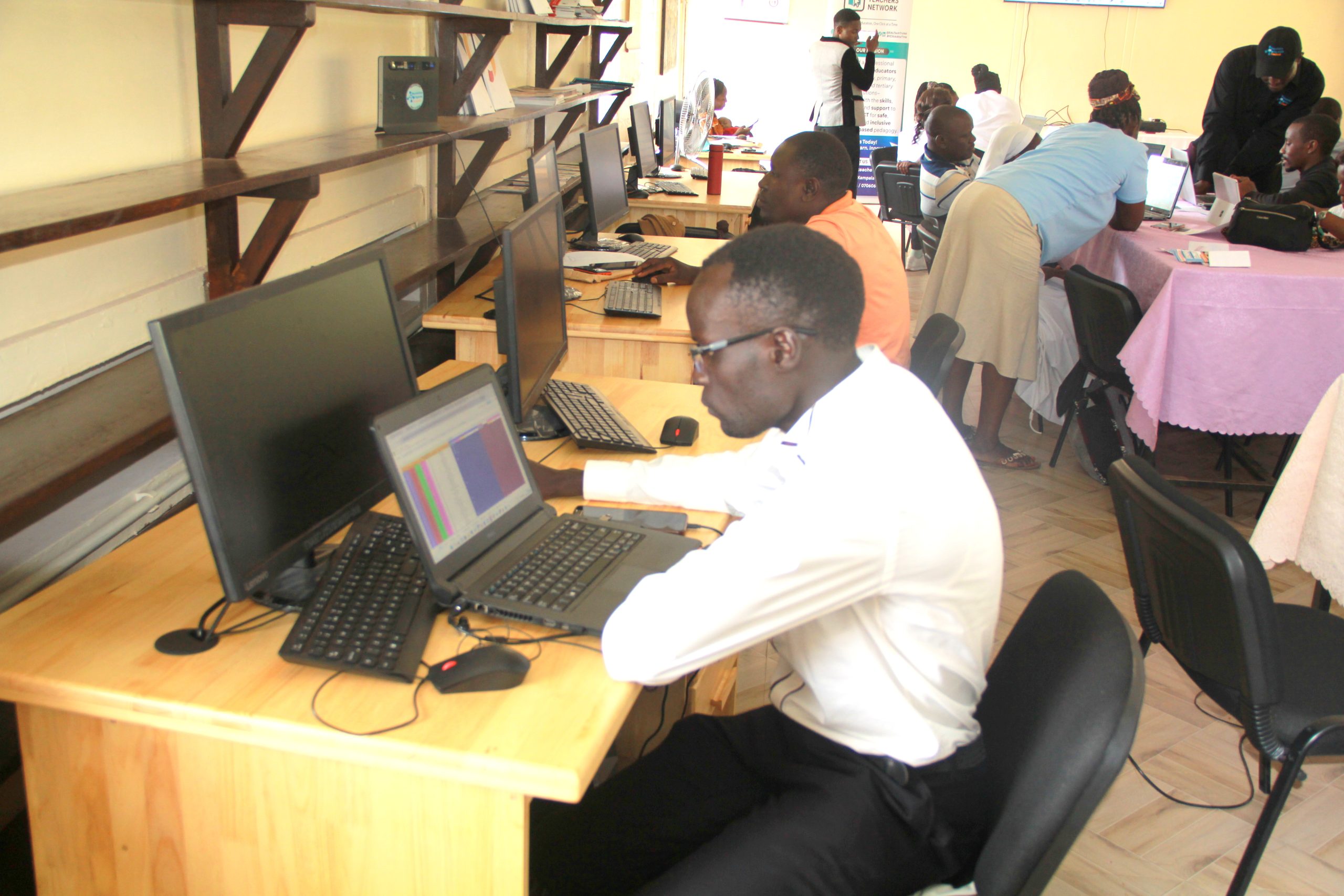
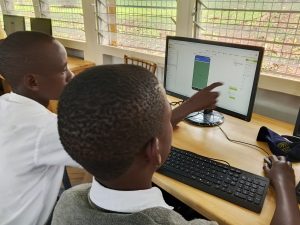
students using computers confidently in a computer lab.
This is a Call to Action for Teachers & Learners:
Practice turning on, navigating, and properly shutting down your computer daily. The more you practice, the more confident you become. Encourage your learners or colleagues to do the same — because mastering the basics is the first step to becoming tech-savvy. P lease join the EduTech Teachers Network and Get Techinics 1Click At a Time.
Leave a Reply